 PopShot
PopShot › How it works
How to use PopShot
PopShot turns a photo of you into a viral photo trend or a four-frame photo booth strip. You choose the trend and the options; the app writes the instructions for the AI and keeps your face.
Goal: a trend photo of yourself that is ready to post in about 10 to 30 seconds.
The app has four tabs: Trends (pick a look), Create (one photo or a 4-frame strip), My Pops (everything you made) and Settings.
Step by step
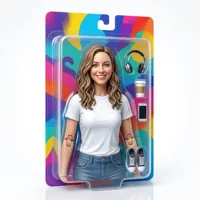
Pick a trend
On the Trends tab, open one of the collections or the grid of all trends, or choose a trend on the Create tab. The dice button opens a random trend.

Add your selfie
On the trend page, take a photo or choose one from your library. The same selfie is shared by the Trends and Create tabs, so you add it once.

Edit the look (optional)
Tap Edit look to set an era, outfit, hair, accessories, light, camera, scene or sidekick, or tap Shuffle for a random mix. Leave everything off to get the trend as it is.
Pop it
Tap Pop it. While the AI works, a waiting screen shows the progress, and a Live Activity keeps it on your Lock Screen if you leave the app. A result usually arrives in about 10 to 30 seconds.

Share or save
The result opens with Share to story on top. Below are the before/after slider, Save and Share, and you can turn it into a booth strip. Everything you make is kept in My Pops.
Create: one photo or a four-frame strip
On the Create tab, add a selfie and choose One photo (pick a trend, optionally Edit look, then Pop it) or 4-frame strip. For a strip, pick one look and shoot it: PopShot makes four frames at the same time, each with its own pose (big smile, peace sign, silly face, cool look) and, unless you chose a scene, its own backdrop color. The frames are then put together on your iPhone into a vertical strip with the PopShot name and the date.
You can also turn any finished trend into a strip: tap Booth strip on the result and the four frames use the same look. If you close the app while something is being made, it keeps going and appears in My Pops when it's ready.
Group Pop with friends
Open a trend and choose With friends, or start from the group card on the Trends tab. Add 2 to 4 people, each with their own selfie, or put one photo that already has everyone in it into a box and tap Use it for everyone: the faces are found on your iPhone and the Pop keeps the poses and interactions of that photo. Photos with more than 4 people are not accepted.
Then set the group's Edit look: era, accessories, light, camera and scene, plus matching outfits such as Black Tie, Pajama Party, Team Kit or Ninja. All 12 trends work for groups. Only add people who agree to be in the photo, because their photos are processed like yours.
Premium and the daily allowance
- Creating needs Premium: browsing trends is free, but making images requires PopShot Premium, a weekly or yearly subscription.
- Daily allowance: Premium includes a daily number of creations, shown in the app.
- Strips: a booth strip uses 4 creations. It does not start if fewer than 4 are left, and a strip that fails or is cancelled uses none.
Sharing formats
- Story card: a 9:16 image with your selfie and the result, made for stories.
- Before/after video: a 3-second clip that wipes from before to after.
- Wallpaper: the result cropped to your screen, with a soft shade at the top behind the clock.
- Strip: share the strip itself, save it, or post it to your story.
Tips for better results
- Use a clear, well-lit selfie where your face is easy to see.
- Start with the trend as it is, then try one Edit look option at a time to see what it changes.
- Tap Shuffle when you want a surprise; the trend stays the same and the options change.
- For a strip, pick a look that suits four different expressions, like 90s Polaroid or Y2K Flash.
My Pops and iCloud
Every trend and strip you make appears in My Pops; strips show a “Strip” sticker and a 2×2 preview. If iCloud is on, your Pops sync through your private iCloud database to your other iPhones signed in to the same Apple Account. You can delete any Pop in the app. Pops that are still being made appear there as soon as they're ready, even if you closed the app.
What happens to your photo
Your photo is sent only when you start a creation (a single Pop, a group Pop or a 4-frame strip). The photo and a short text description of your choices go through the developer's secure cloud function (Google Cloud, Europe) to a third-party AI provider, kie.ai, which makes the new image and returns it. The cloud function keeps nothing, and kie.ai deletes its files automatically after a limited time. Counting the people in a photo happens on your iPhone with Apple Vision. In a group Pop your friends' photos are handled the same way, so only add people who agree. Details are in the privacy policy.